
You may have your drives encrypted, without knowing it, and if not at the moment, it may happen soon.

BitLocker automatically encrypts hard drives when it is installed on Windows. On some versions of Windows e.g. Windows 11 Pro, it comes as standard. However, starting with Windows 11 24H2, Microsoft intends to implement a new setup process, which will automatically activate BitLocker encryption, which will also affect Window 11 Home users.
This may create some serious problems for people who are unfamiliar with BitLocker. There are many situations that can trigger BitLocker to enter into Recovery Mode, if or when that happens, you will need access to your encryption key.
It is very important to have a copy of the BitLocker encryption key stored in a safe place.
When a drive is encrypted with BitLocker, it means that even if the drive is removed and put into another computer, it will not be possible to gain access to the data on the drive, unless you have the encryption key. From a security point of view this is very good, but it also has the potential to be disastrous for anyone who does not have a copy of the encryption key. You can lose all the data on your drive. All your documents, images and music, will be completely locked into that drive.
Microsoft say:
“Important: If your device is asking you for your BitLocker recovery key, there is no “back door,” there are no workarounds, and Microsoft support can’t provide you with the missing key or create a new one for you. You will need that 48-digit key to unlock your device.”
To check if you have BitLocker installed and activated:
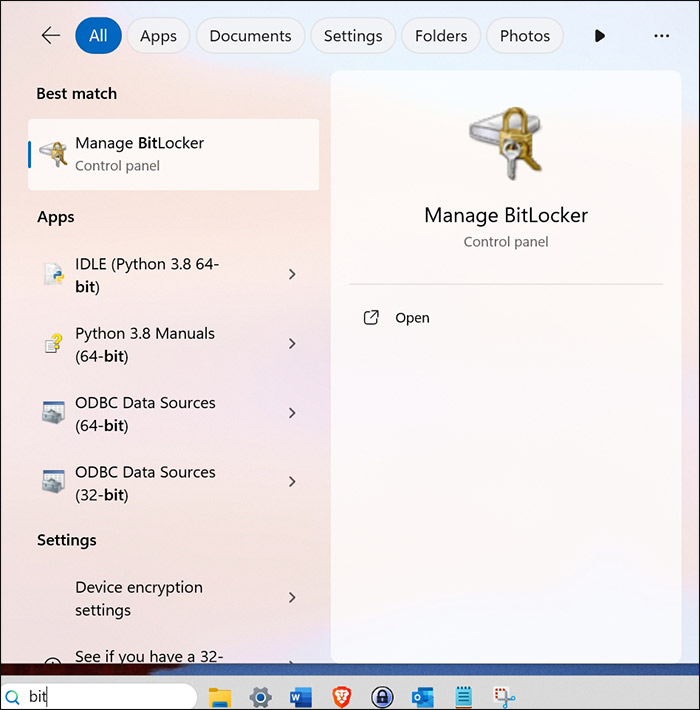
Start typing “bitlocker” into your search box, and select Manage BitLocker.
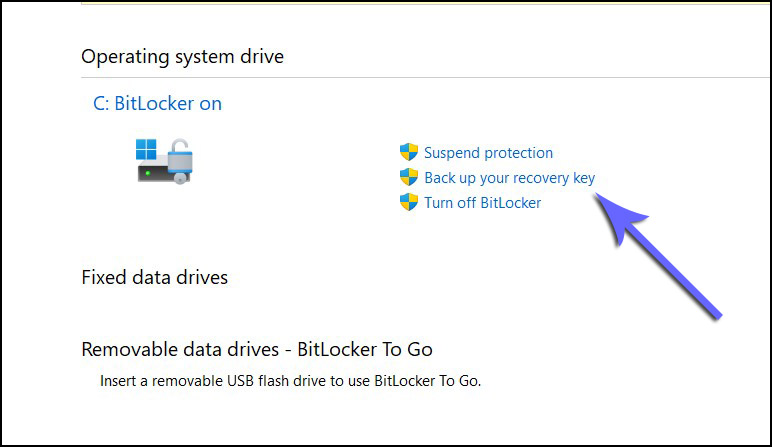
If you have BitLocker, and it is switched on, you will have three options:
- Suspend protection
- Back up your recovery key
- Turn off BitLocker
Select “Back up your recovery key”
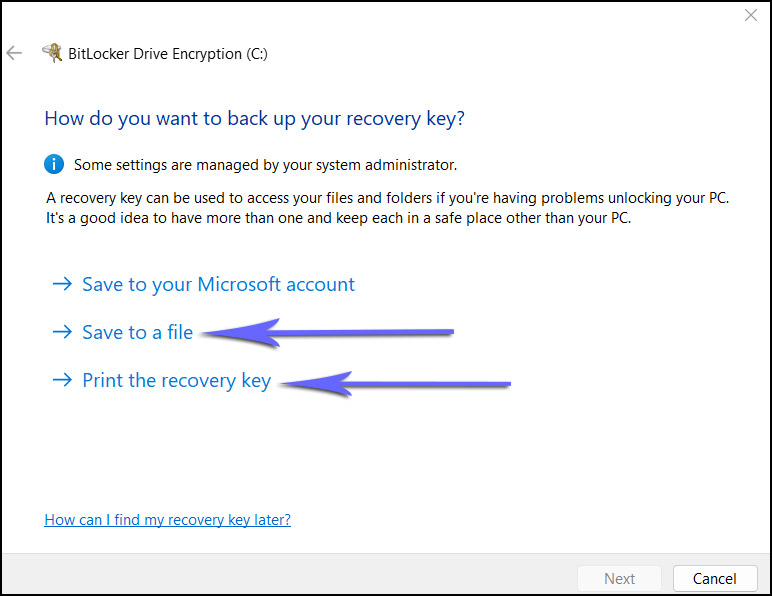
When asked how you want to back up your recovery key, I would recommend using both “Save to a file” and “Print the recovery key”, especially if you are using a Local Account. You can save these files to a USB memory stick, or portable hard drive. You can save the “Print the recovery key” as a PDF file and also print it off on a sheet of paper.
When someone puts something in a safe place, after a while it is very common to forget where that particular safe place is. It does not do any harm to have a few copies backed up in different places. Storing it on the computer that you are using will not help you if you have to get past a Recovery Screen.
There are numerous events that may cause a computer to enter into BitLocker Recovery Mode when starting Windows. So, you never know when you might need your encryption key.
Alternatively
If you have a machine with BitLocker already switched on, you may want to weigh up the pros and cons of having it. Do you really need that amount of security? Depending on your computer environment, the process of encrypting and decrypting may slow your computer down.
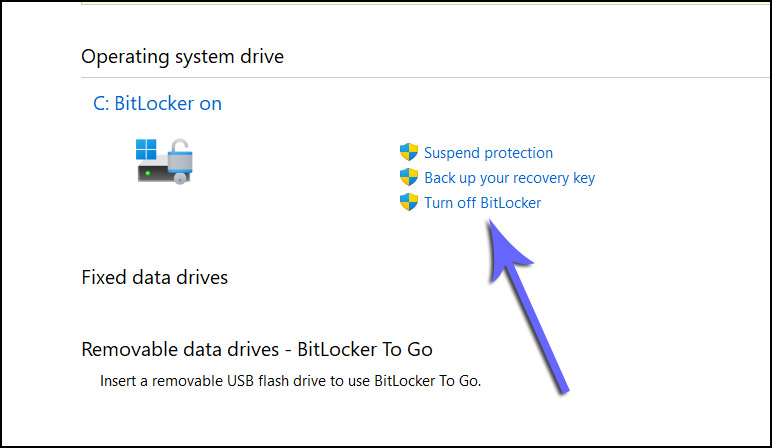
You may decide that you just want to turn it off. If that is the case it’s an easy enough process to implement.
Bypassing a Windows login password is not difficult when someone has physical access to a device, but accessing an encrypted drive is. Unfortunately, this increased level of security has the potential to cause serious problems for some people.
 Ronnie's Blog
I better call you Ronnie 😂 I’m already lost
But thank you it’s really beneficial 👌
LikeLiked by 2 people
🙂
LikeLiked by 2 people